系列文章:
- FFmpeg入门 - 视频播放
- FFmpeg入门 - rtmp推流
- FFmpeg入门 - Android移植
- FFmpeg入门 - 格式转换
上一篇博客介绍了怎样用ffmpeg去播放视频.
里面用于打开视频流的avformat_open_input函数除了打开本地视频之外,实际上也能打开rtmp协议的远程视频,实现拉流:
1
2
3
| ./demo -p 本地视频路径
./demo -p rtmp://服务器ip/视频流路径
|
这篇文章我们来讲下怎样实现推流,然后和之前的demo代码配合就能完成推流、拉流的整个过程,实现直播。
rtmp服务器
整个直播的功能分成下面三个模块:
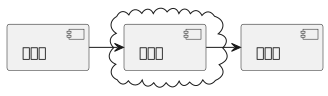
从上图我们可以看到rtmp是需要服务器做转发的,我们选用开源的srs.直接从github上把它的源码拉下来编译,然后直接启动即可:
1
2
3
4
5
| git clone git@github.com:ossrs/srs.git
cd srs/trunk
./configure
make
./etc/init.d/srs start
|
如果是本地的电脑,这个时候就能在局域网内直接用它的内网ip去访问了.但如果是腾讯云、阿里云之类的云服务器还需要配置安全组开放下面几个端口的访问权限:
1
2
3
4
5
6
7
8
9
10
11
12
13
14
15
16
17
18
19
20
21
| listen 1935;
max_connections 1000;
#srs_log_tank file;
#srs_log_file ./objs/srs.log;
daemon on;
http_api {
enabled on;
listen 1985;
}
http_server {
enabled on;
listen 8080;
dir ./objs/nginx/html;
}
rtc_server {
enabled on;
listen 8000; # UDP port
# @see https://ossrs.net/lts/zh-cn/docs/v4/doc/webrtc#config-candidate
candidate $CANDIDATE;
}
...
|
当然如果这几个端口已经被占用的话可以修改配置文件conf/srs.conf去修改
服务器到这里就准备好了,浏览器访问下面网址对srs进行调试、配置:
http://服务器ip:8080/players/rtc_publisher.html
http://服务器ip:1985/console/ng_index.html
推流
准备输出流
我们选择推送本地的视频到rtmp服务器,所以第一步仍然是打开本地视频流:
1
2
3
4
5
6
7
8
9
10
11
12
13
14
15
16
17
18
19
20
21
| bool VideoSender::Send(const string& srcUrl, const string& destUrl) {
...
if(avformat_open_input(&inputFormatContext, srcUrl.c_str(), NULL, NULL) < 0) {
cout << "open " << srcUrl << " failed" << endl;
break;
}
if(avformat_find_stream_info(inputFormatContext, NULL) < 0) {
cout << "can't find stream info in " << srcUrl << endl;
break;
}
av_dump_format(inputFormatContext, 0, srcUrl.c_str(), 0);
...
}
|
本地视频打开之后,我们创建输出视频流上下文,然后为输出流创建轨道,最后打开输出视频流:
1
2
3
4
5
6
7
8
9
10
11
12
13
14
15
16
17
18
19
20
|
if(avformat_alloc_output_context2(&outputFormatContext, NULL, "flv", destUrl.c_str()) < 0) {
cout << "can't alloc output context for " << destUrl << endl;
break;
}
if(!createOutputStreams(inputFormatContext, outputFormatContext)) {
break;
}
av_dump_format(outputFormatContext, 0, destUrl.c_str(), 1);
if(avio_open(&outputFormatContext->pb, destUrl.c_str(), AVIO_FLAG_WRITE) < 0) {
cout << "can't open avio " << destUrl << endl;
break;
}
|
这里有个createOutputStreams用于根据本地视频文件的轨道信息,为输出流创建同样的轨道:
1
2
3
4
5
6
7
8
9
10
11
12
13
14
15
16
17
18
19
20
21
22
23
24
25
26
27
28
29
| static bool createOutputStreams(AVFormatContext* inputFormatContext, AVFormatContext* outputFormatContext) {
for(int i = 0 ; i < inputFormatContext->nb_streams ; i++) {
AVStream* stream = avformat_new_stream(outputFormatContext, NULL);
if(NULL == stream) {
cout << "can't create stream, index " << i << endl;
return false;
}
if(avcodec_parameters_copy(stream->codecpar, inputFormatContext->streams[i]->codecpar) < 0) {
cout << "can't copy codec paramters, stream index " << i << endl;
return false;
}
if(av_codec_get_id(outputFormatContext->oformat->codec_tag, stream->codecpar->codec_tag) != stream->codecpar->codec_id) {
stream->codecpar->codec_tag = 0;
}
}
return true;
}
|
codec_id和codec_tag
这里可以看到对于编码器有codec_id和codec_tag两个字段去描述,codec_id代表的是数据的编码类型.而codec_tag用于更详细的描述编解码的格式信息,它对应的是FourCC(Four-Character Codes)数据。
例如codec_id都是AV_CODEC_ID_RAWVIDEO的裸数据,但它可能是YUV的裸数据也可能是RGB的裸数据:
1
2
3
4
5
|
{ AV_CODEC_ID_RAWVIDEO, MKTAG('r', 'a', 'w', ' ') },
{ AV_CODEC_ID_RAWVIDEO, MKTAG('y', 'u', 'v', '2') },
{ AV_CODEC_ID_RAWVIDEO, MKTAG('2', 'v', 'u', 'y') },
{ AV_CODEC_ID_RAWVIDEO, MKTAG('y', 'u', 'v', 's') },
|
又例如codec_id都是AV_CODEC_ID_H264,但实际上也有许多细分类型:
1
2
3
4
5
6
7
8
9
10
11
12
13
14
|
{ AV_CODEC_ID_H264, MKTAG('a', 'v', 'c', '1') },
{ AV_CODEC_ID_H264, MKTAG('a', 'v', 'c', '2') },
{ AV_CODEC_ID_H264, MKTAG('a', 'v', 'c', '3') },
{ AV_CODEC_ID_H264, MKTAG('a', 'v', 'c', '4') },
{ AV_CODEC_ID_H264, MKTAG('a', 'i', '5', 'p') },
{ AV_CODEC_ID_H264, MKTAG('a', 'i', '5', 'q') },
{ AV_CODEC_ID_H264, MKTAG('a', 'i', '5', '2') },
{ AV_CODEC_ID_H264, MKTAG('a', 'i', '5', '3') },
{ AV_CODEC_ID_H264, MKTAG('a', 'i', '5', '5') },
{ AV_CODEC_ID_H264, MKTAG('a', 'i', '5', '6') },
{ AV_CODEC_ID_H264, MKTAG('a', 'i', '1', 'p') },
{ AV_CODEC_ID_H264, MKTAG('a', 'i', '1', 'q') },
{ AV_CODEC_ID_H264, MKTAG('a', 'i', '1', '2') },
|
可以看出来codec_tag是通过4个字母去表示的,我们来看看MKTAG的定义:
1
| #define MKTAG(a,b,c,d) ((a) | ((b) << 8) | ((c) << 16) | ((unsigned)(d) << 24))
|
最终它得到的是一个整数,例如MKTAG(‘a’, ‘v’, ‘c’, ‘1’)得到的值是0x31637661
- 0x31 =1
- 0x63 = c
- 0x76 = v
- 0x61 = a
我们可以用av_fourcc2str这个函数将最终的整数转换回字符串
回过头来看看这个判断:
1
| if(av_codec_get_id(outputFormatContext->oformat->codec_tag, stream->codecpar->codec_tag) != stream->codecpar->codec_id)
|
大部分情况下如果codec_tag在输出流不支持的情况下av_codec_get_id拿到的是AV_CODEC_ID_NONE,所以大部分情况可以等价于:
1
| if(av_codec_get_id(outputFormatContext->oformat->codec_tag, stream->codecpar->codec_tag) != AV_CODEC_ID_NONE)
|
不过也存在都是MKTAG(‘l’, ‘p’, ‘c’, ‘m’),但codec_id可能是AV_CODEC_ID_PCM_S16BE或者AV_CODEC_ID_PCM_S16LE的情况:
1
2
| { AV_CODEC_ID_PCM_S16BE, MKTAG('l', 'p', 'c', 'm') },
{ AV_CODEC_ID_PCM_S16LE, MKTAG('l', 'p', 'c', 'm') },
|
所以最好还是和原本的codec_id做比较会靠谱点。
写入视频数据
接着就是视频数据的写入了,主要有三个步骤,写入文件头、读取本地视频包并写入输出视频流、写入文件结尾:
1
2
3
4
5
6
7
8
9
10
11
12
13
14
15
16
17
18
19
20
21
22
23
24
25
26
27
28
29
30
31
32
33
34
35
36
37
38
39
|
AVDictionary * opts = NULL;
av_dict_set(&opts, "flvflags", "no_duration_filesize", 0);
if(avformat_write_header(outputFormatContext, opts ? &opts : NULL) < 0) {
cout << "write header to " << destUrl << " failed" << endl;
break;
}
packet = av_packet_alloc();
if(NULL == packet) {
cout << "can't alloc packet" << endl;
break;
}
...
while(av_read_frame(inputFormatContext, packet) >= 0) {
...
av_interleaved_write_frame(outputFormatContext, packet);
av_packet_unref(packet);
}
av_write_trailer(outputFormatContext);
|
帧同步
由于av_read_frame这里读取出来的是未解码的压缩数据速度很快,如果不做控制一下子就发送完成了,会造成数据堆积在服务器上。这里我们忽略网络传输耗时,依然通过视频包的pts做一定的同步:
1
2
3
4
5
6
7
8
9
10
11
12
13
14
15
16
17
18
19
20
21
22
| while(av_read_frame(inputFormatContext, packet) >= 0) {
if(videoStreamIndex == packet->stream_index) {
if(AV_NOPTS_VALUE == packet->pts) {
av_usleep(32000);
} else {
int64_t nowTime = av_gettime() - startTime;
int64_t pts = packet->pts * 1000 * 1000 * timeBaseFloat;
if(pts > nowTime) {
av_usleep(pts - nowTime);
}
}
}
av_interleaved_write_frame(outputFormatContext, packet);
av_packet_unref(packet);
}
|
资源释放
等视频流读写完成之后就是最后的资源释放收尾工作了:
1
2
3
4
5
6
7
8
9
10
11
12
13
14
| if(NULL != packet) {
av_packet_free(&packet);
}
if(NULL != outputFormatContext) {
if(NULL != outputFormatContext->pb) {
avio_close(outputFormatContext->pb);
}
avformat_free_context(outputFormatContext);
}
if(NULL != inputFormatContext) {
avformat_close_input(&inputFormatContext);
}
|
其他
源码和上篇博客的是同一个仓库,编译之后可以通过-s参数推流到服务器:
./demo -s video.flv rtmp://服务器ip/live/livestream
推流的同时就能使用-p参数去拉流进行实时播放:
./demo -p rtmp://服务器ip/live/livestream
这个demo只是简单的将本地视频文件推到服务器,实际上我们可以对他做些修改就能实现将摄像头的视频流推到服务器了。